
New Calendar and Availability Updates for Teachers
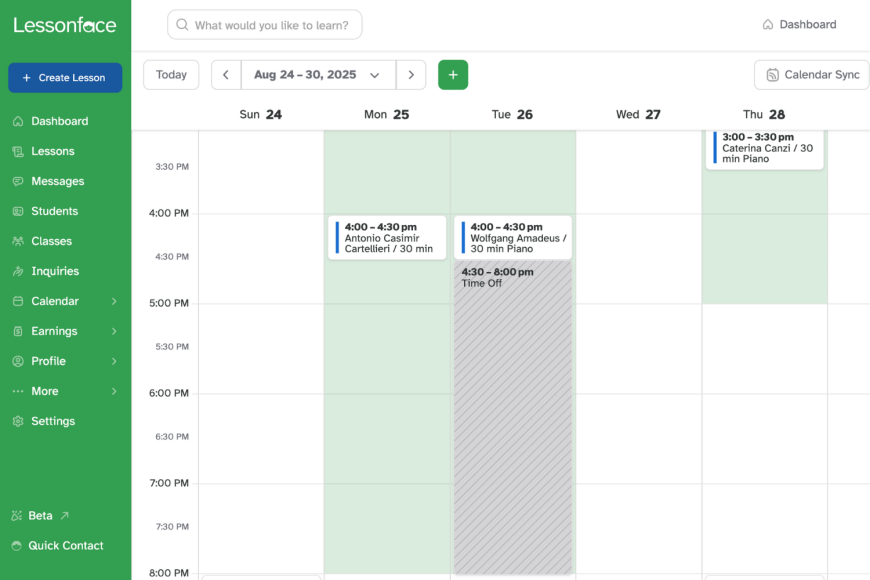

Teachers asked, Lessonface delivered! In a recent survey, teachers expressed interest in being able to sync their Lessonface calendar to an external Google calendar. We are delighted to announce that we have updated our calendar and availability features to include this new functionality, as well as a fresh design. Teachers now have the option to have their Lessonface lessons automatically added to their external calendars. Additionally, if they choose, events on their external calendars can by synced back to Lessonface calendar as "Time Off", making those times unavailable for bookings. We expect this will both save time for teachers and avoid accidental conflicts and double-bookings. Students, too, can view their Lessonface activities (lessons, group classes, recitals, etc.) in the calendar view, which is accessible in the green left-hand menu. The new calendar and availability features should be mostly self-explanatory, though if you'd like a guide on what's new, please read on below.
Guide to New Calendar and Availability Features
Availability
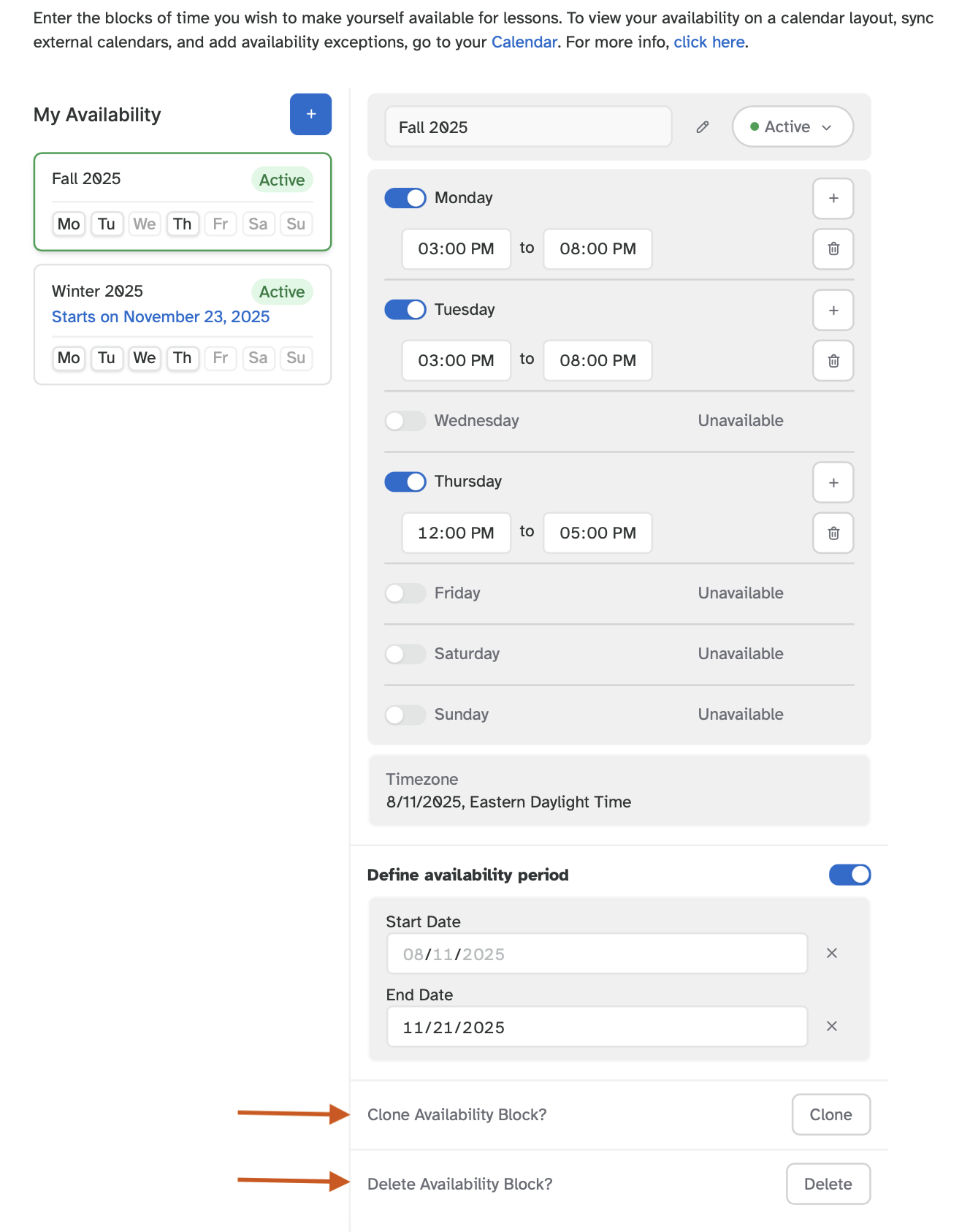
Most active teachers already had their availability set up before the update, and this was imported automatically into the new version. The navigation to access your availability has changed slightly. Now, to set up or edit availability, click the "Calendar" link in the left-hand menu bar and then select "Availability". Alternatively, go directly to lessonface.com/availability.
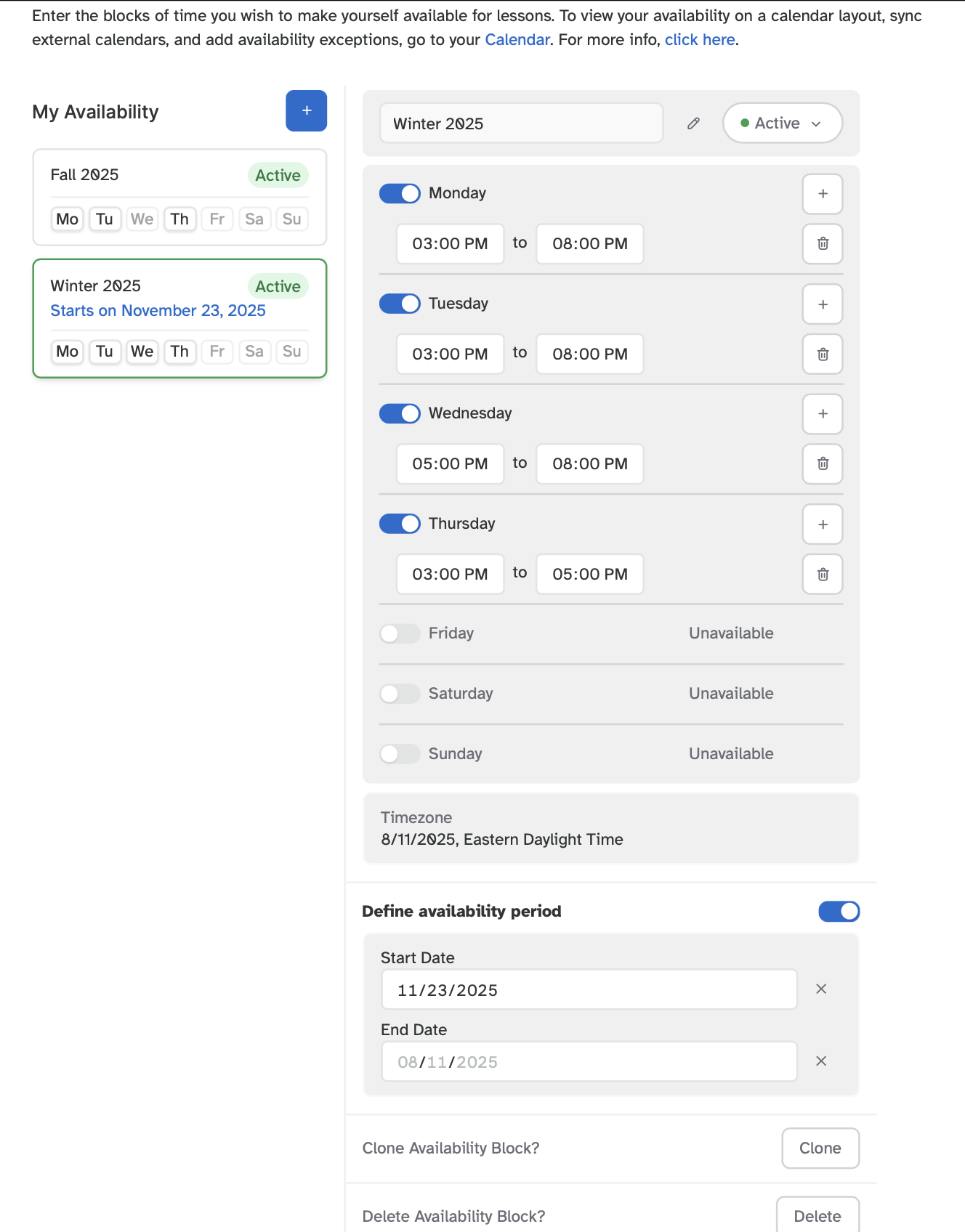
Set up an availability block with a start date and end date to establish your teaching schedule for a specific date range. You can set up multiple availability blocks to accommodate seasonal schedule changes. Within each block, enter the days and times that you are available to teach. You may clone availability blocks that will repeat in the future and delete availability blocks that no longer apply. There is no "Save" button, as the site automatically saves your changes for you.
Calendar
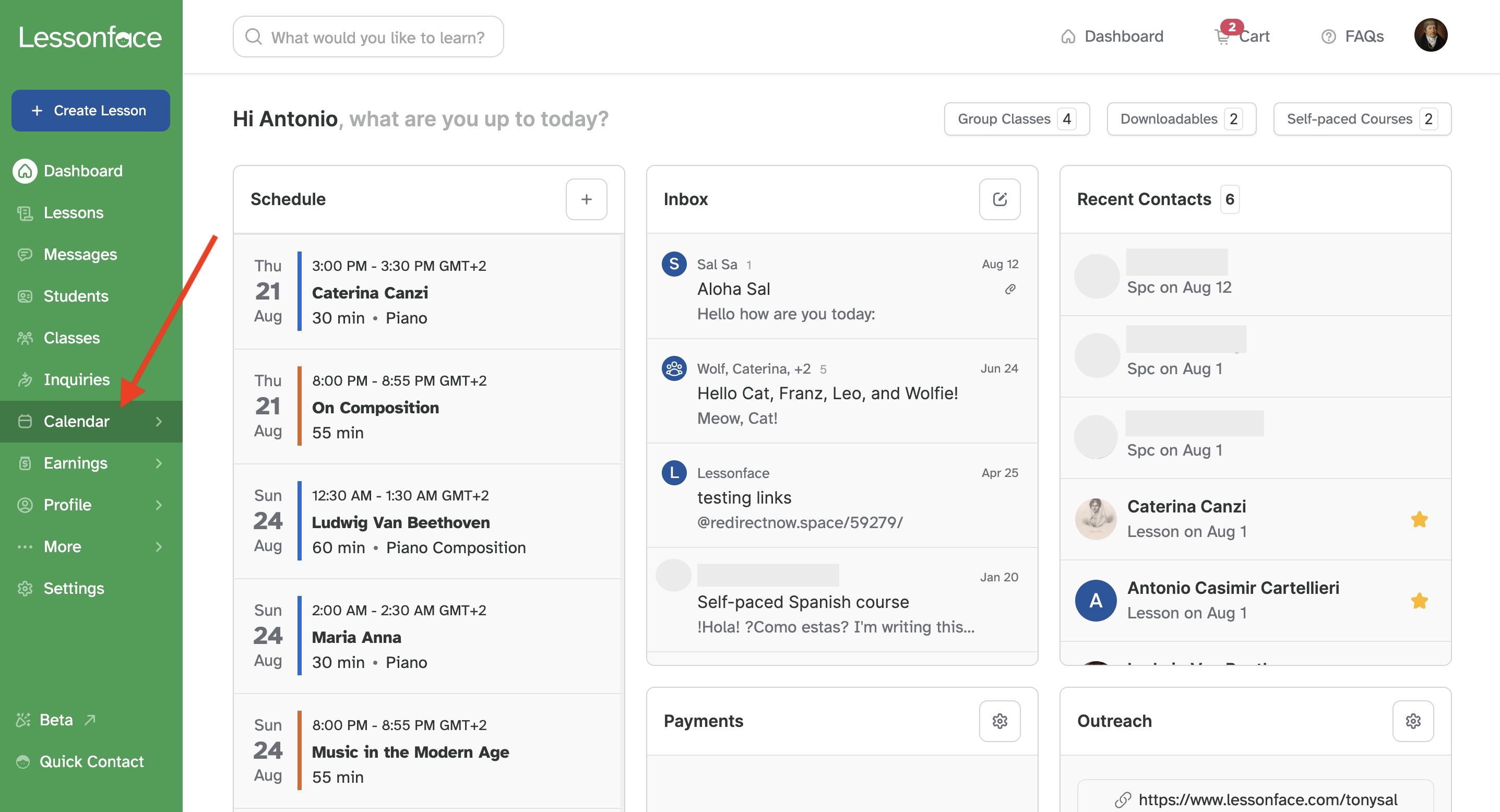
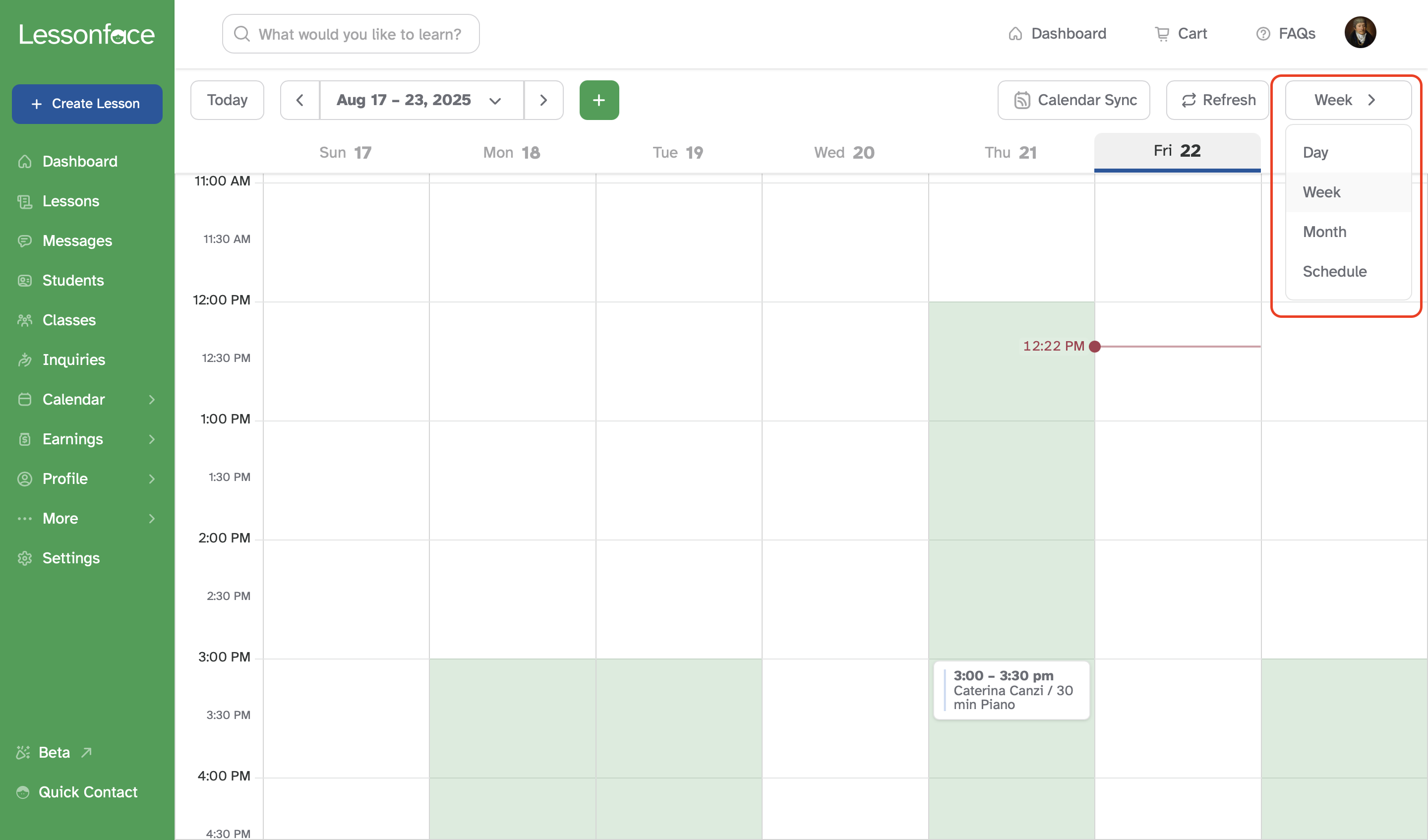
View your availability and booked lessons in your Calendar. Access your calendar via the link in the left-hand menu bar (select "Calendar" and then "Calendar" again) or by going directly to lessonface.com/calendar. A weekly view is the default, but you can view your calendar in a daily, monthly, or schedule format if you prefer.
Time Off
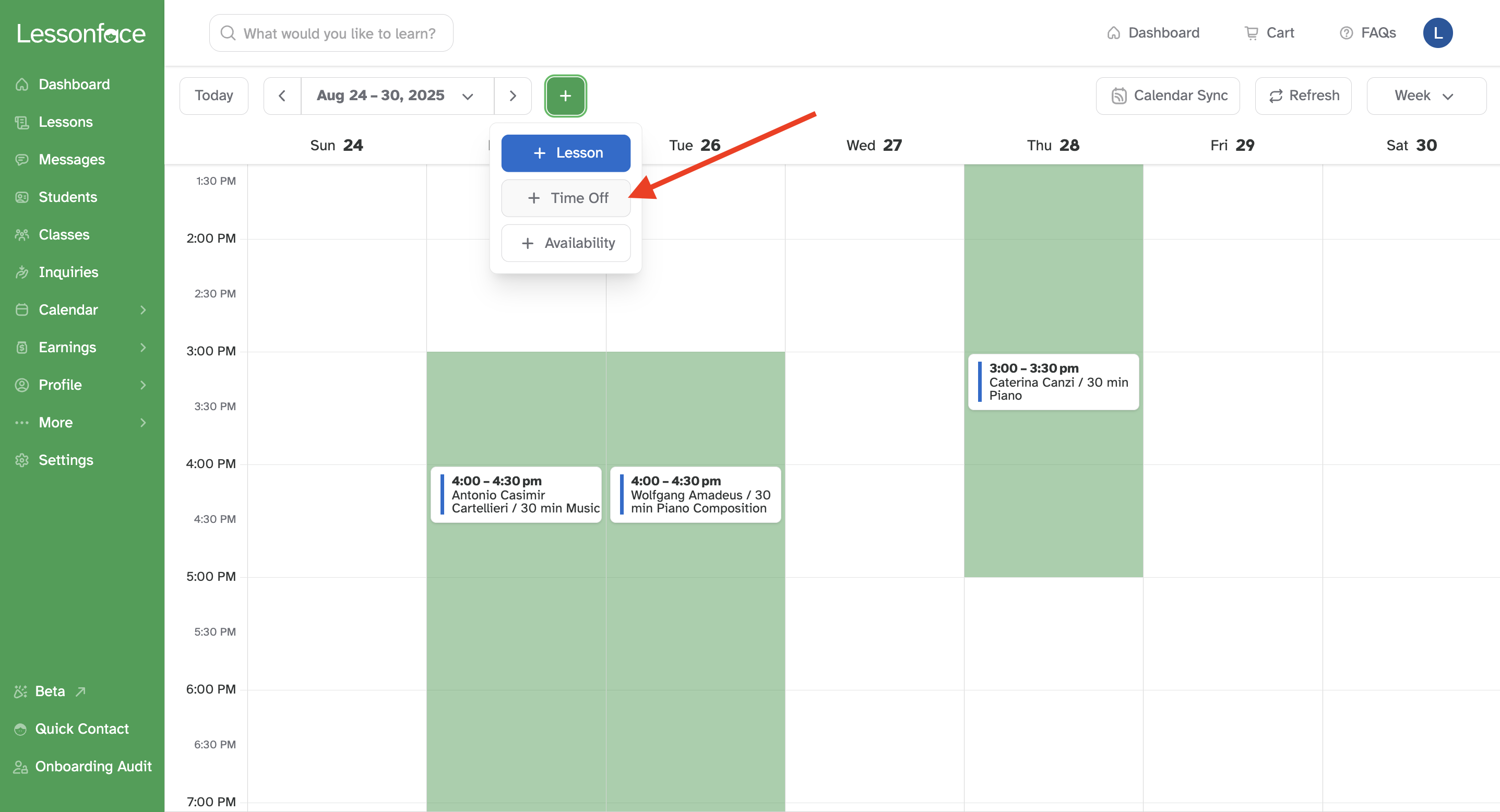
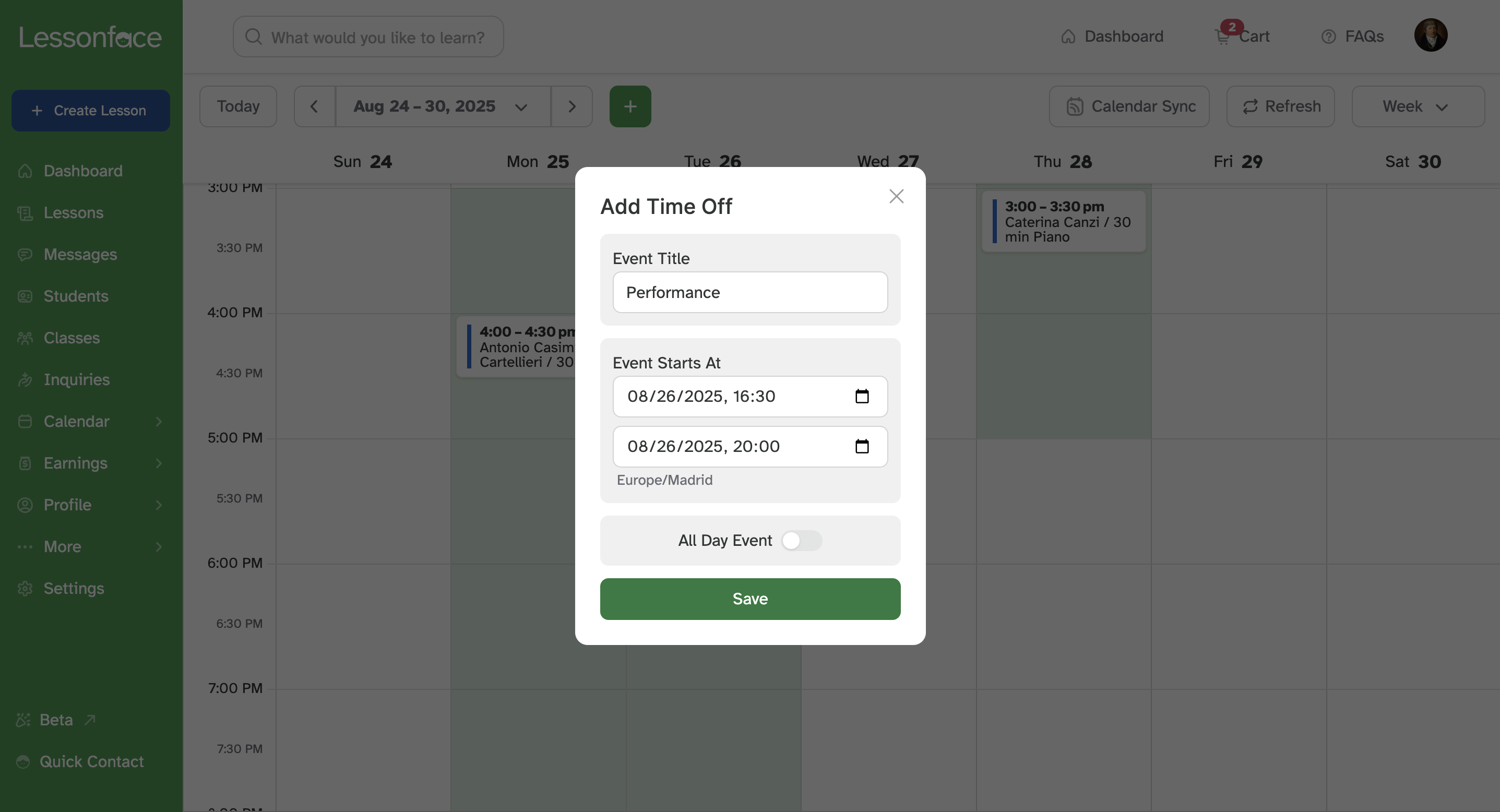
Inevitably there will be times ― tours, vacations, appointments, performances, family visits, etc. ― when you are not available to teach according to your usual schedule. In such cases, rather than adjusting your entire availability blocks, you can simply add time off to your calendar. Click the green "plus" sign above your calendar and select the "+Time Off" button. Then, name your time off block (optional) and select the start day/time and the end day/time. Check the box for "All Day Event" to block off a single day. Remember to click the green "Save" button when you're done.
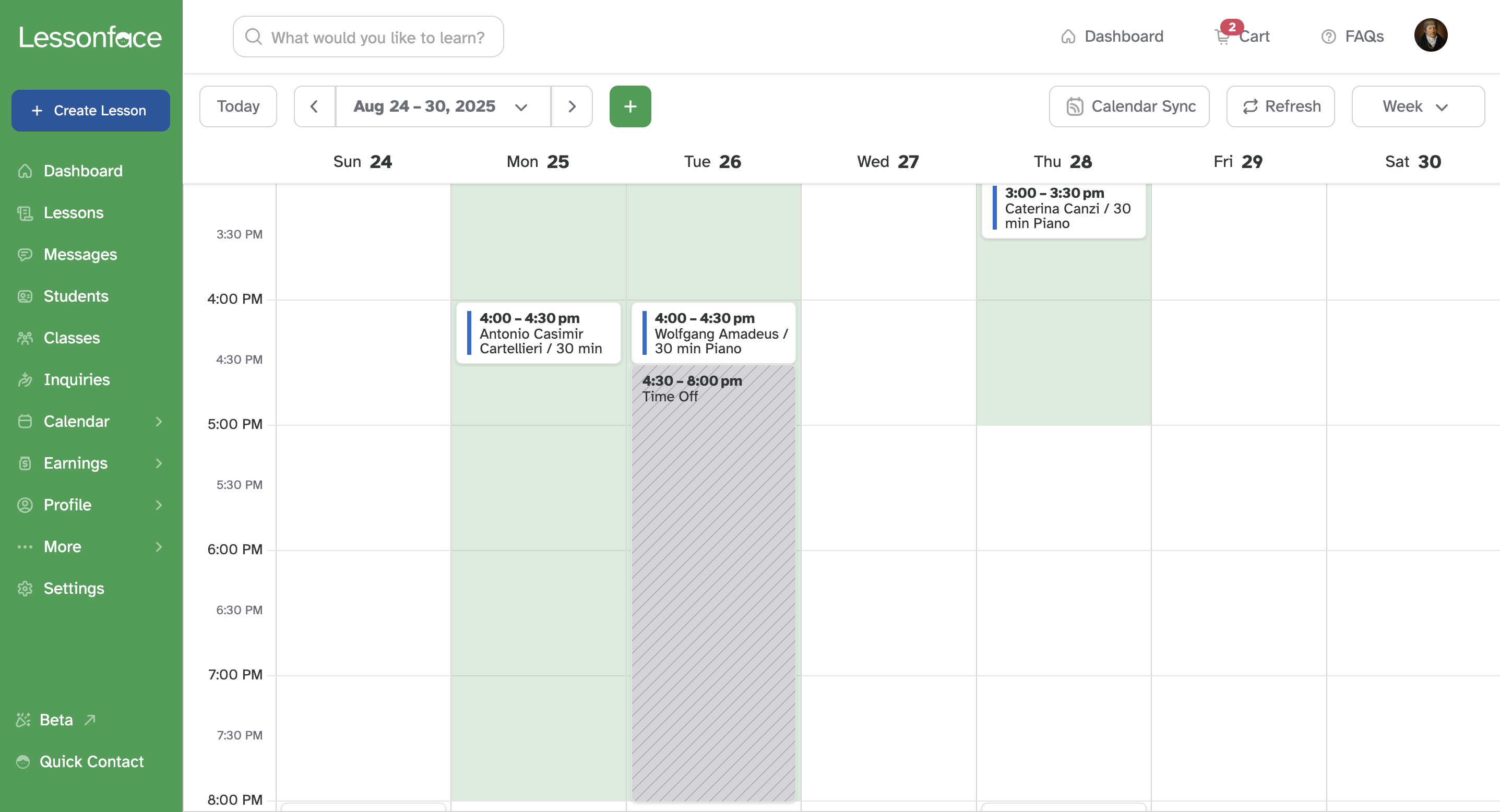
Your Time Off appears as a gray zone in your calendar. Click the gray zone to edit or delete Time Off.
Important: Creating a Time Off block will prevent future lessons from being scheduled for that time range. If there are lessons scheduled for that time range before you blocked it off, you will need to unschedule or reschedule those lessons manually. You can change lessons by clicking "Lessons" in the left-hand menu bar and finding the individual lessons on your schedule. It's a good idea to send students a brief message any time you make changes to their schedule.
Note that you can also use the green "plus" sign to invite a student to a lesson (choose the blue "+Lesson" button) and add or change availability blocks (choose the "+Availability" button).
Calendar Sync
In addition to viewing your lessons and group classes in Lessonface's calendar, you may also synchronize your external Google calendar if you'd like to use it to manage your availability on Lessonface.
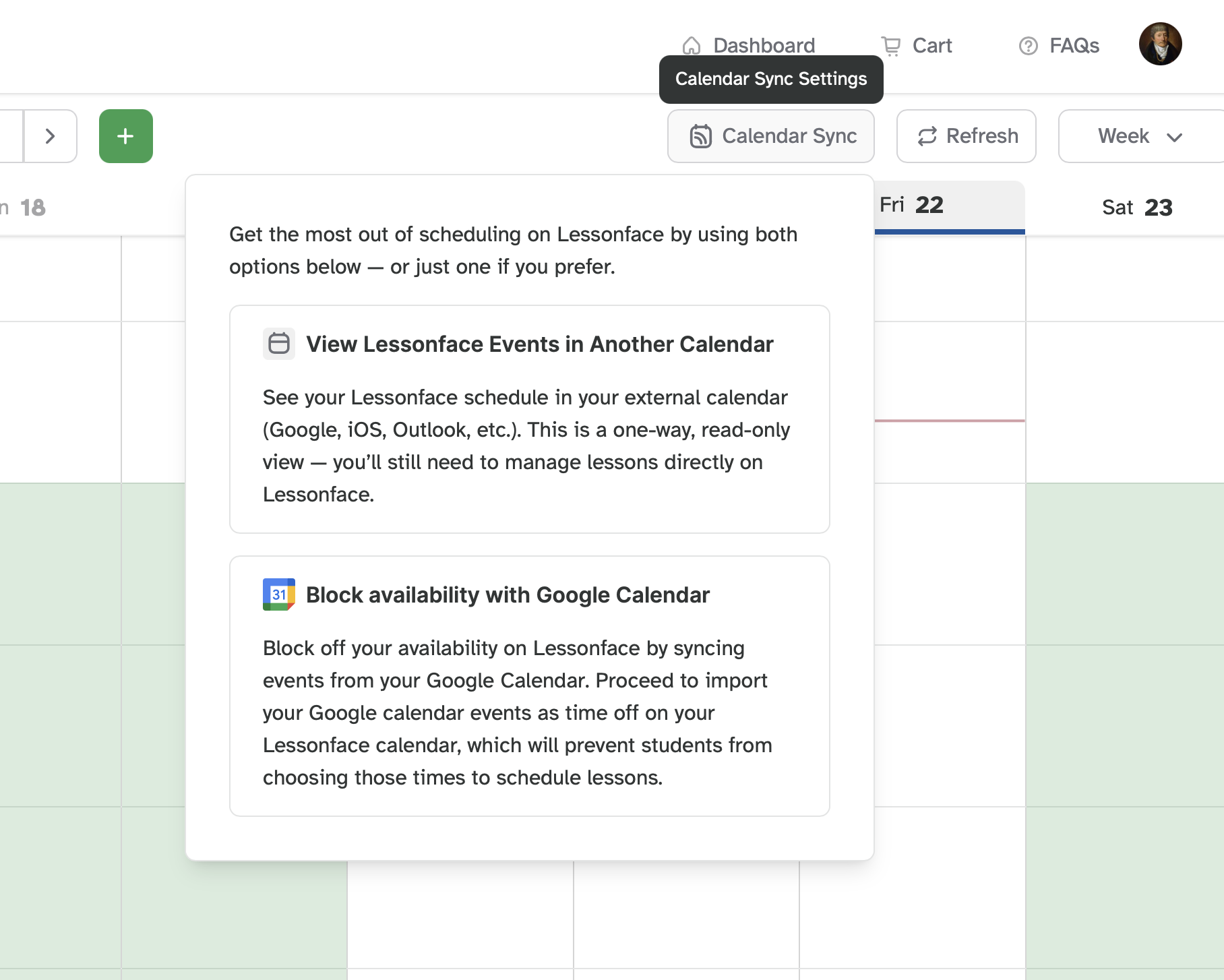
If you'd like to add your Lessonface lessons to your external calendar, choose the top option under Calendar sync, "View Lessonface Events in Another Calendar". Just remember that you can't reschedule your lessons externally - any schedule changes must be made on Lessonface. Also, schedule changes made on Lessonface can take 2-24 hours to adjust on the external calendar, so always rely on your Lessonface dashboard for the most up-to-date information.
To manage your availability based on your Google calendar, choose the lower option, "Block Availability with Google Calendar". Once you go through the quick process to confirm the sync, any appointments marked on your external calendar will be shown on Lessonface labeled as "Time Off" and will be unable to be booked for lessons. If you have events in your personal calendar that you do not want removed from your Lessonface availability (i.e., your cousin's birthday), you can remove those blocks by clicking on them and choosing the trash can. One way this might work well for busy teachers with varying schedules would be to open up a regular set of available times on Lessonface, then sync your Google calendar to make sure your non-Lessonface commitments are blocked from your Lessonface availability. You can remove the calendar sync easily using the same navigation to the "Sync" options, then choosing "Disable Calendar Sync."
We see both students and teachers get frustrated when a lesson is booked for a time you're not actually available. Whichever way(s) you choose for managing your availability and time off, please be sure to keep your calendar up to date!
Feedback or Questions?
We hope these new calendar features will streamline your teaching schedule and reduce booking conflicts. If you'd like to share feedback about Lessonface in general or the new calendar update, please comment below or take our End of Summer 2025 Teacher Survey. If you have questions or run into an issue with calendar sync or availability management, don't hesitate to get in touch at [email protected]. We're excited to see how these tools help you focus more on what you do best — teaching great lessons!

Start Lessons
Search for your perfect music, language, or arts teacher and start working towards your learning goals.

Start with a Free Trial
Teachers on Lessonface set their own rates and discounts. Participating teachers offer free trials.
Great Teachers, Great Lessons, Guaranteed
Learn more about the greatest universe for online music and arts lessons.

Lessonface Recitals, Open Mics, Masterclasses, and Jams
Welcome students of all ages and skill levels!