
Original Sound for MusiciansHow to Enable Original Sound for Musicians on Zoom
Your Best Practices for Zoom Audio
Zoom, the video conferencing app Lessonface uses for lessons and classes, offers settings to improve your audio for music lessons and classes. See below how to activate them on your device.
Having trouble selecting the correct microphone and speaker devices on Zoom? Check out the Zoom Speaker and Mic Check page.
|
A few quick observations: • Make sure Zoom is up to date. Download and install the latest version here or on your app store, or click "Check for Updates..." on the Zoom app. • These settings will affect the way your audio sounds to your counterpart in the meeting but does not fix what you hear from them, so feel free to share this page with your teacher/student if you believe they would benefit. Here's an easy-to-remember link: Lessonface.com/ZoomAudio |
Getting Started
Choose your operating system:
• Mac & Windows
• Mobile Phone or Tablet
• Chromebook
Contact us with any questions.
Zoom Video Test Room: Set Up Audio Before Your Lesson
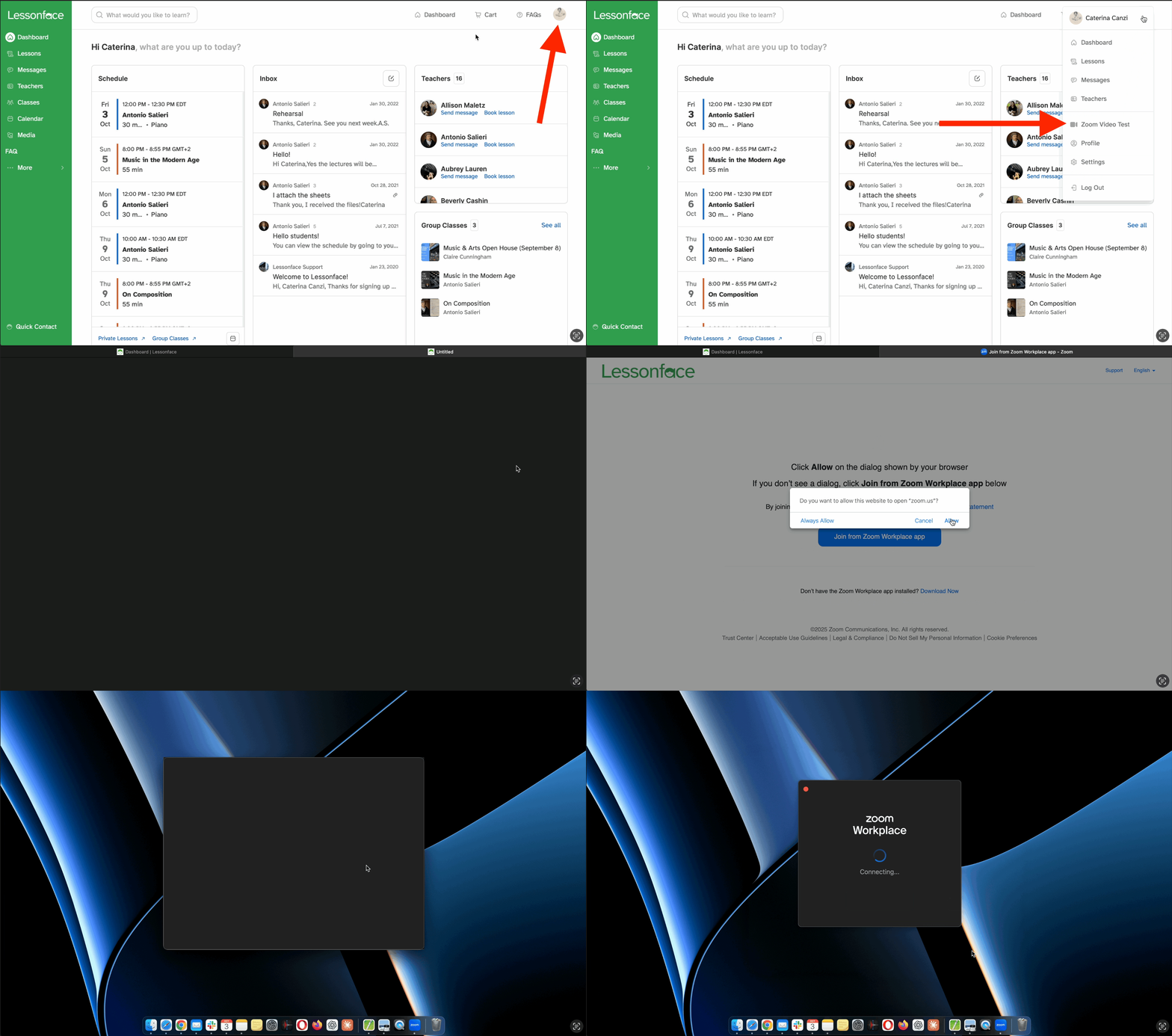
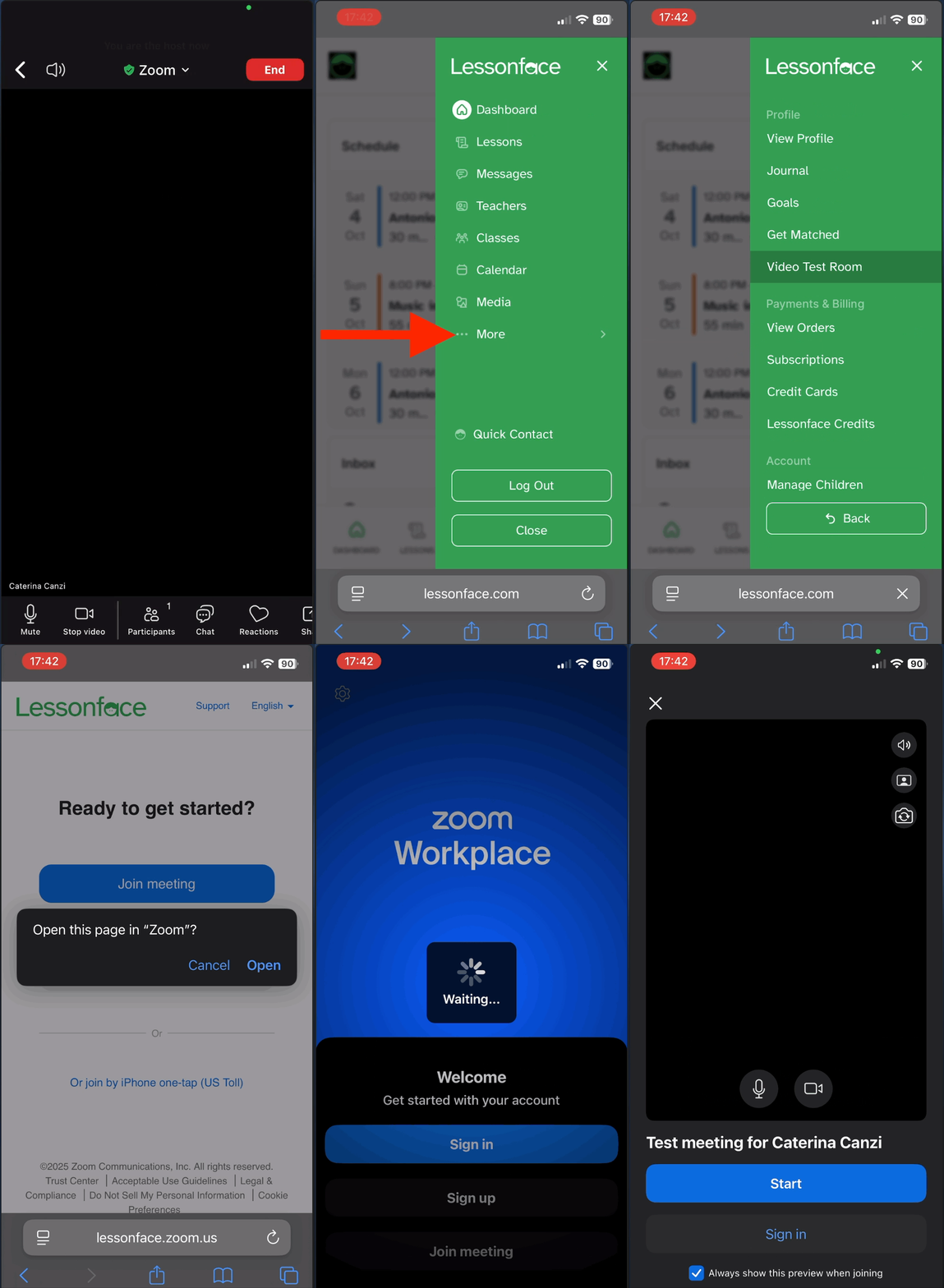
You don't have to wait for your lesson time to set up your audio in Zoom. We recommend using the Zoom Video Test room ahead of time to adjust the audio settings, so that you're ready to go for your first lesson. Here's where to find the Zoom Video Test from your Lessonface dashboard on a computer, mobile phone, and tablet.
Open Zoom Video Test on a desktop computer, laptop computer, or tablet
- From your Lessonface dashboard, click the circle in the upper right corner that shows your first initial or profile image.
- Choose "Zoom Video Test".
- Accept the prompts to open Zoom and start the meeting. (If you don't yet have Zoom on your device, you'll be prompted to download it.)
- Enable Original Sound in Audio Settings, according to device type. See our instructions for computer or tablet.

Open Zoom Video Test on a phone
- From your Lessonface dashboard, touch the three horizontal lines in the upper right corner to open your green menu bar.
- Click "...More" and then "Video Test Room".
- Accept the prompts to open Zoom and start the meeting. (If you don't yet have Zoom on your device, you'll be prompted to download it.)
- Turn on Original Sound in Audio Settings.

Original Sound on Mac & Windows
It's very simple! Click the up arrow next to the microphone, then under Microphone modes, select Original sound for musicians. Check out the example below.

All done! Original Sound for Musicians will prevent Zoom from filtering out musical sounds that it might consider "background noise".
Quick note about Original sound for Musicians: if you have a fan or some kind of continuous source of noise in the room, it's good to check with other meeting participants how your audio is coming out, as the noise can be a little distracting or hindering to the clarity of your sound output.
If you need to switch back from original sound, just click the up arrow again and select Noise removal (default).
We'd love to hear your thoughts! Contact us by email or via the blue help bubble on the bottom left corner. We hope you have great lessons with great audio on Lessonface!
Important for Windows Users: Uncheck "Enable Audio Enhancements"
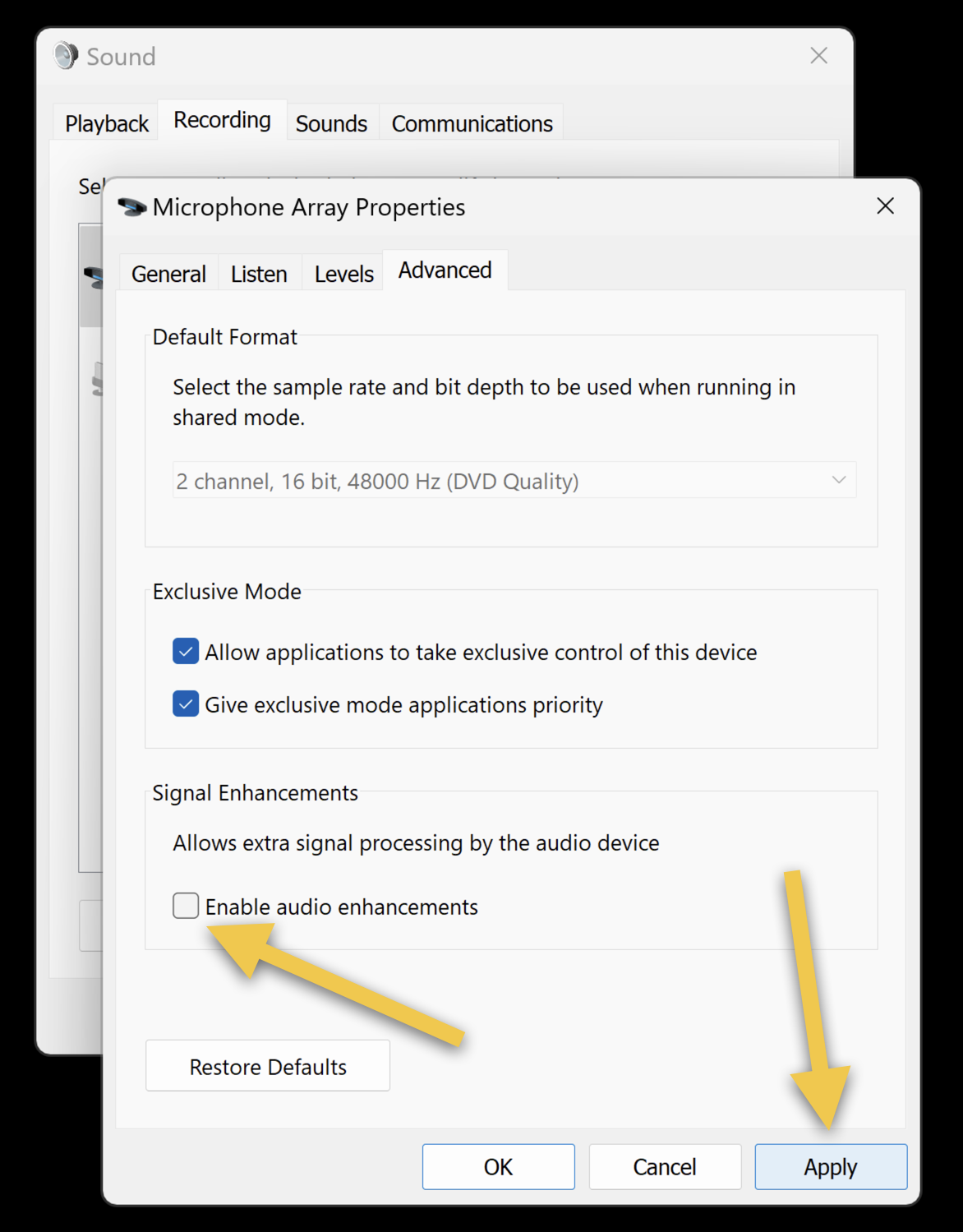
Windows has an additional audio setting that precedes Zoom, and it needs to be disabled for audio to be optimal during music lessons. The name of the setting is "Enable audio enhancements". See below how to access it and disable it.
How to Find the Audio Enhancements Setting
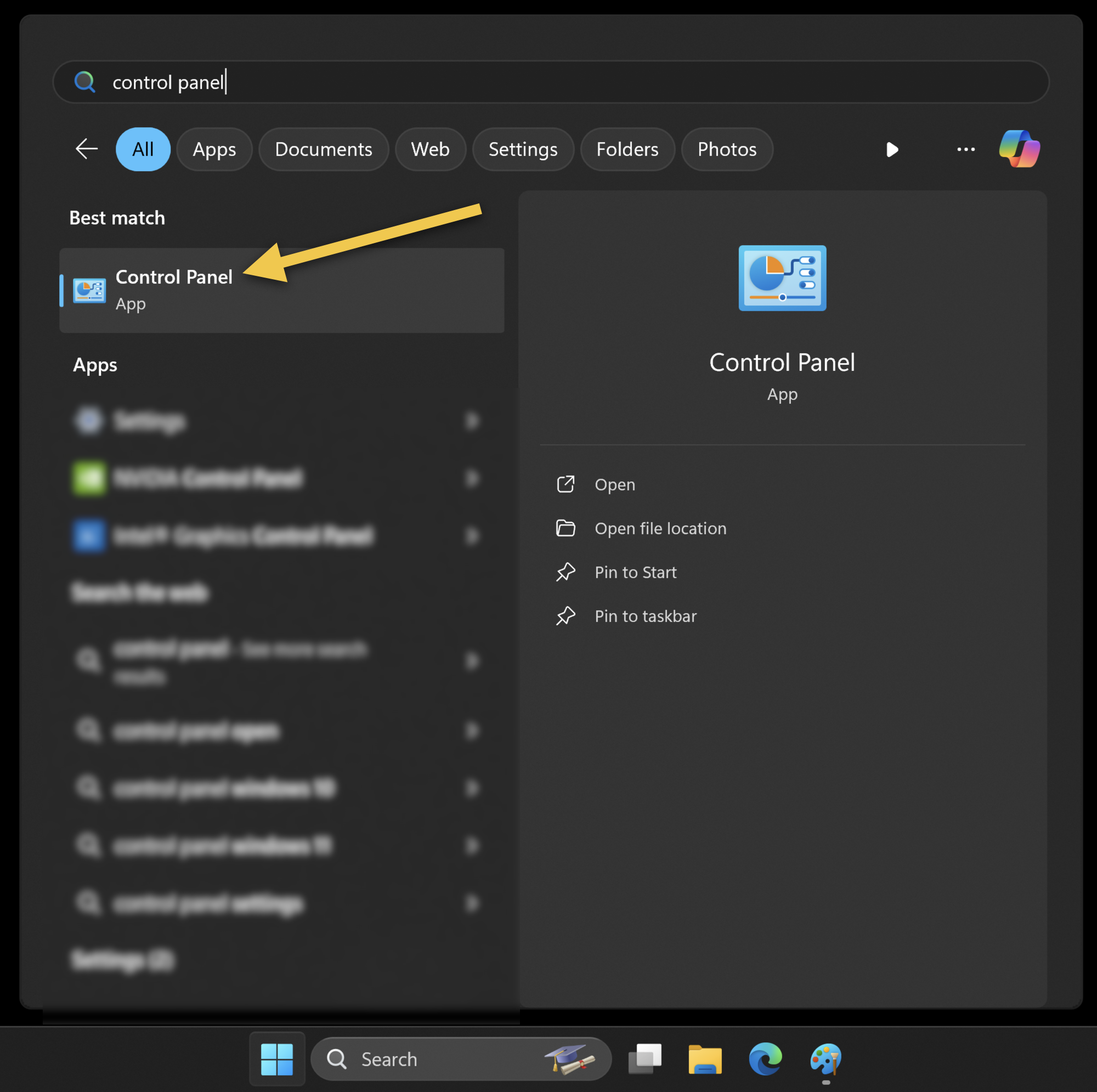
1 - Open Control Panel
Press the Windows key or the search box on the task bar, type Control Panel and press Enter.
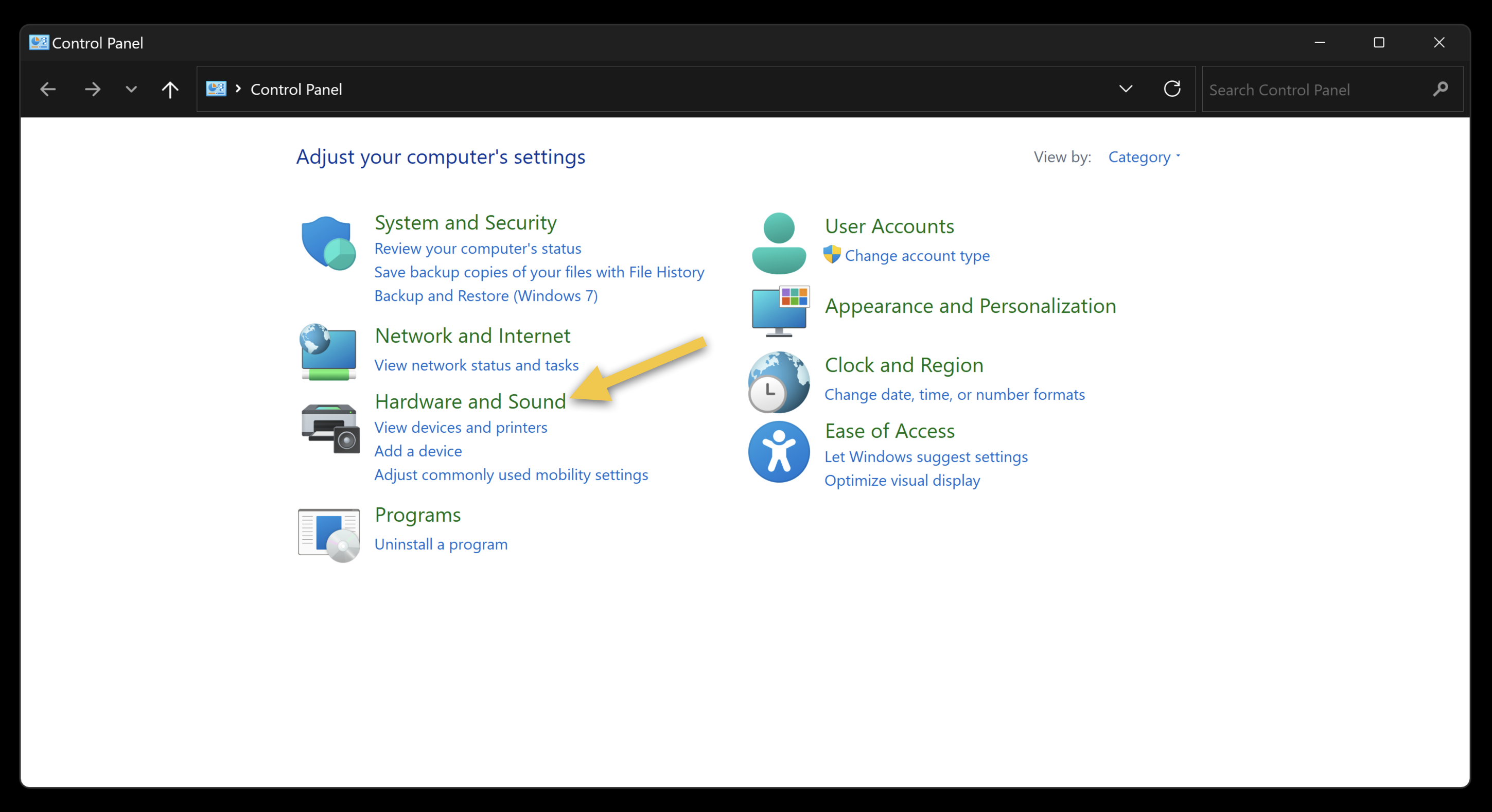
2 - Hardware and Sound
Click on Hardware and Sound (in green)
3 - Manage Audio Devices
Click on Manage Audio Devices
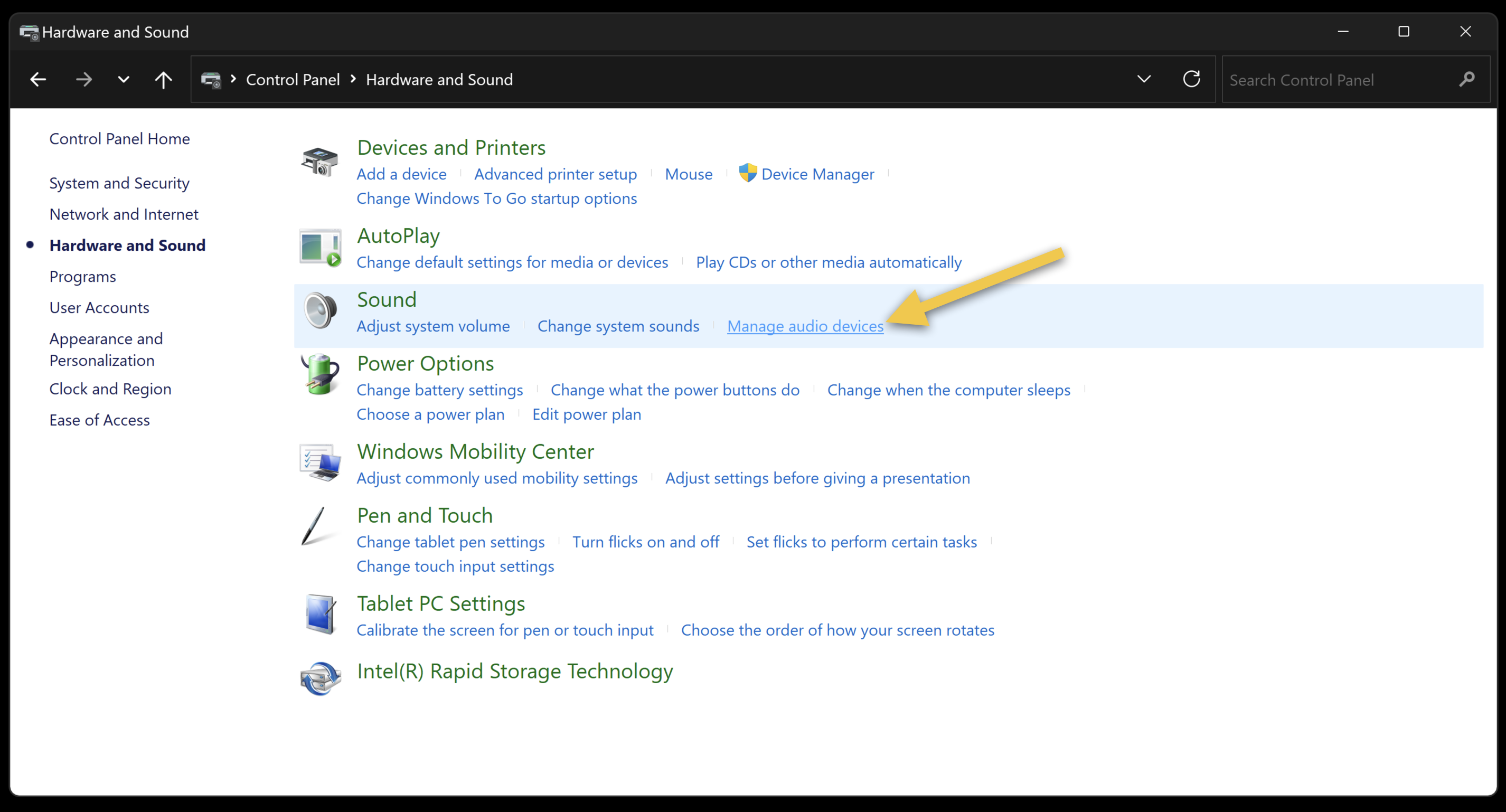
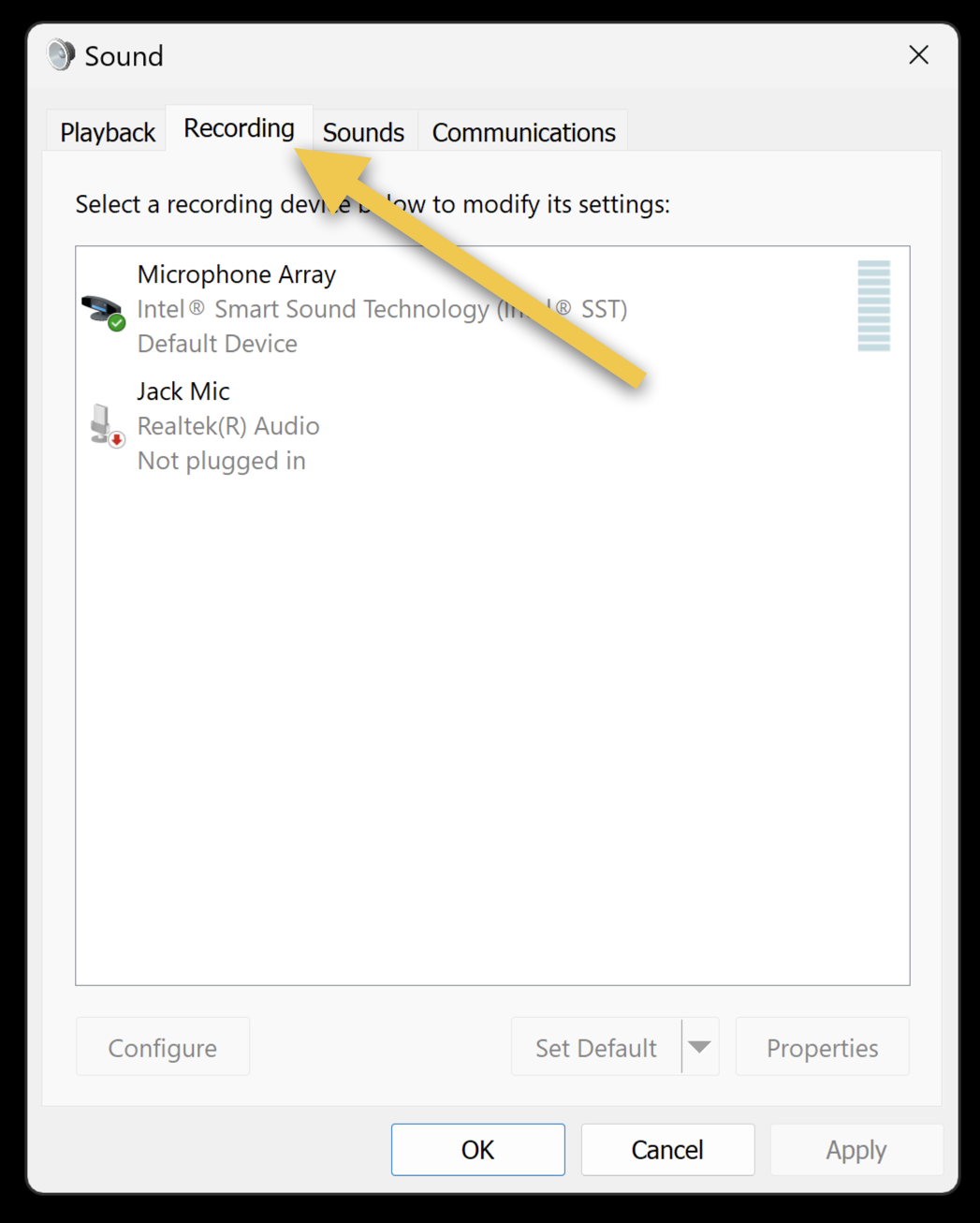
4 - Recording Tab
On the Sound panel, open the Recording tab.
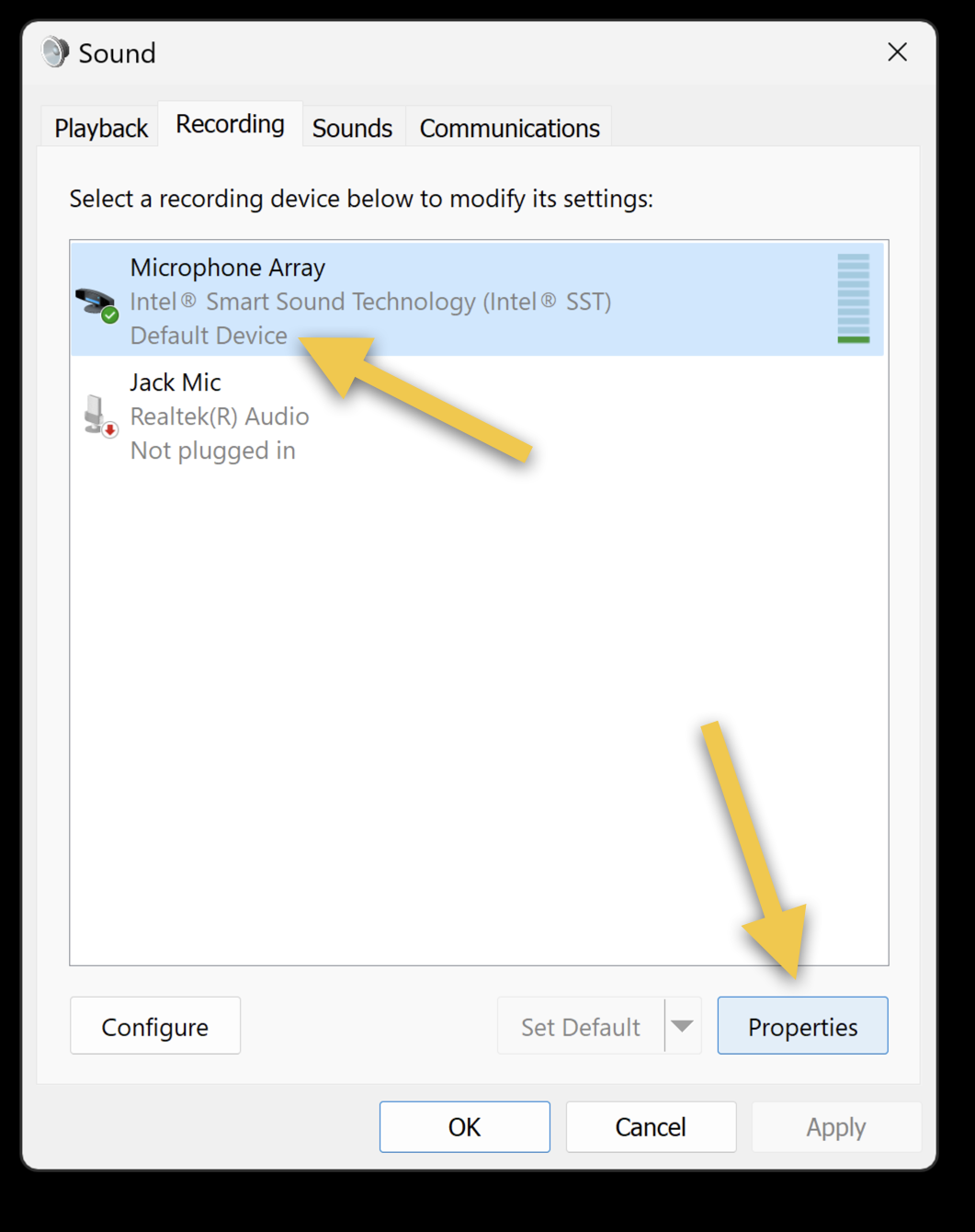
5 - Default Device and Properties
Click the device that is marked as Default Device, then Properties. In case there a re multiple and the fix doesn't work with the default device, try the other devices as well, one at a time.
6 - Advanced Tab
On the Properties panel for the device, open the Advanced tab.
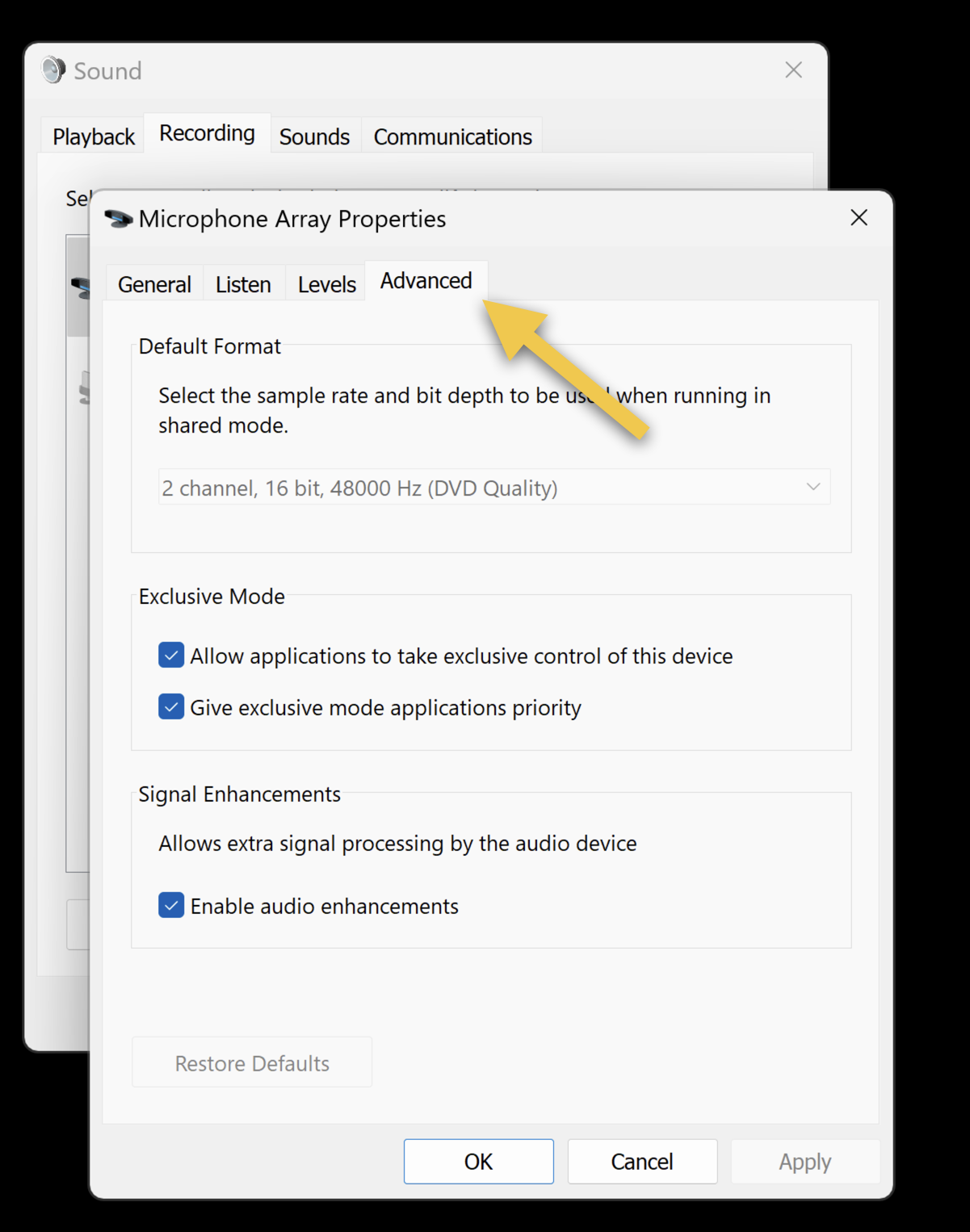
7 - Uncheck Enable Audio Enhancements and Apply
On the Advanced tab, uncheck the "Enable Audio Enhancements" checkbox, then hit Apply.
Important, if you are inside a Zoom meeting, it is likely that your microphone will stop working on the Zoom meeting. To fix it, simply exit the Zoom meeting and join again.
With Enable Audio Enhancements disabled, Windows will stop cutting out musical sounds and allow for a better music lesson experience.
Tech Support Session
Would you like to schedule a tech support session and test these audio settings with a Lessonface staff member? Book a free 15 or 30-min session here - it's just like booking a regular lesson.
- View your lesson schedule and messages by going to your Lessonface Dashboard.
- Looking for music lessons? Click here.
Original Sound on Mobile Phone & Tablet
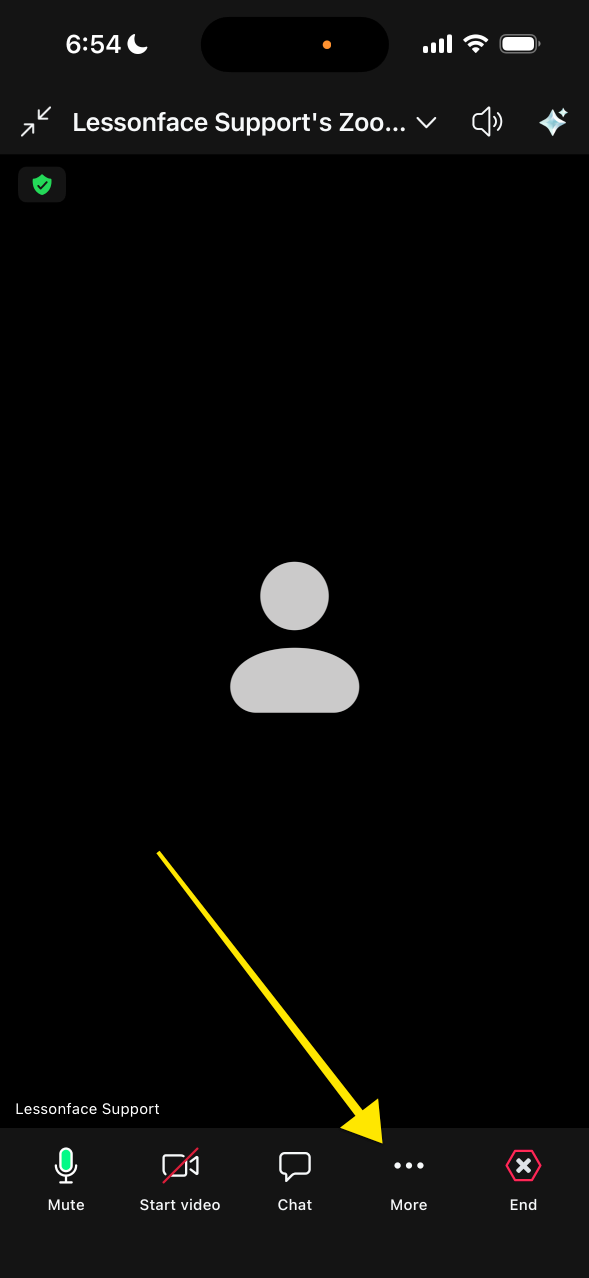
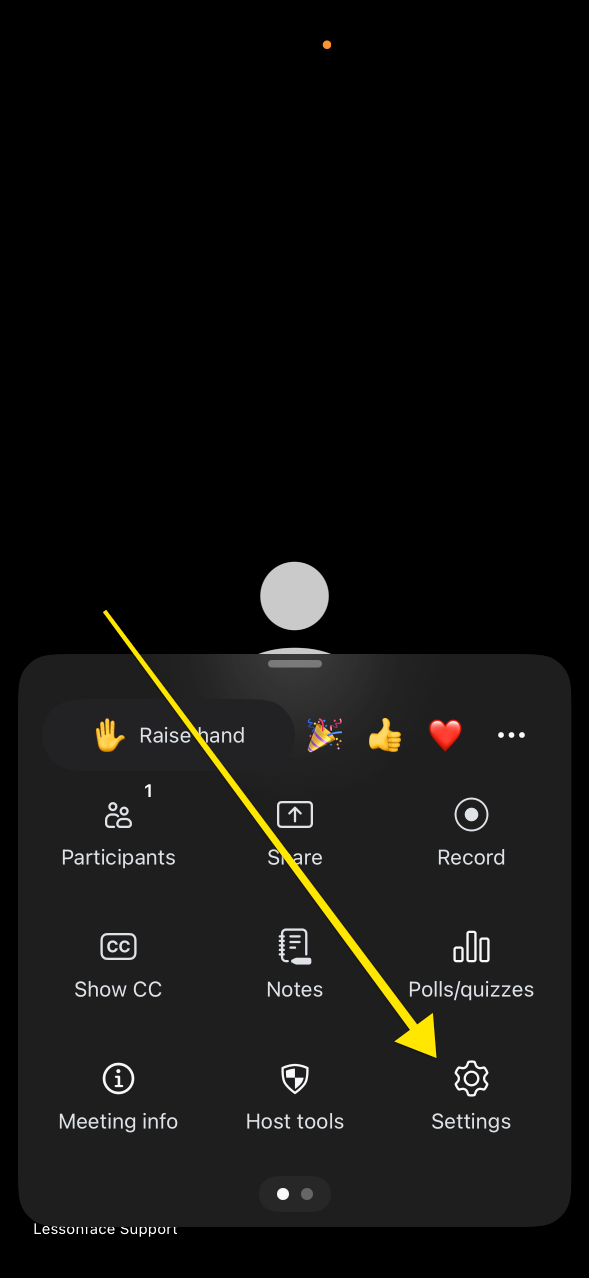
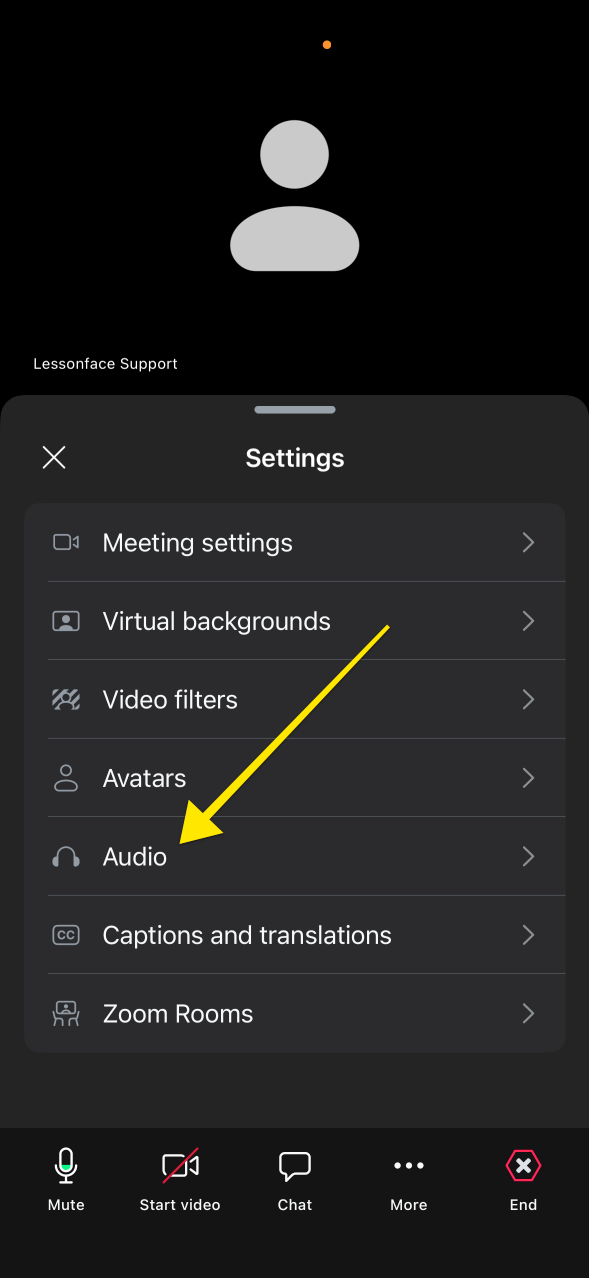
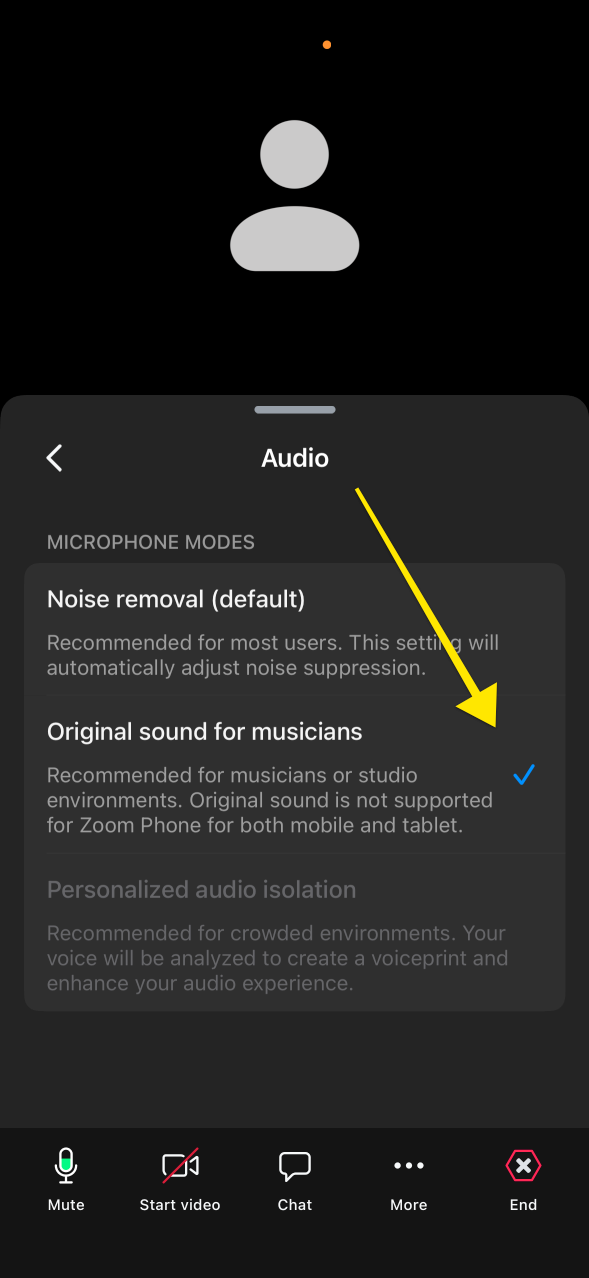
These settings should prevent Zoom from filtering out musical sounds that it might consider "background noise".
Quick note about Original sound for Musicians: if you have a fan or some kind of continuous source of noise in the room, it's good to check with other meeting participants how your audio is coming out, as the noise can be a little distracting or hindering to the clarity of your sound output.
If you need to switch back from original sound, just go back to the Audio settings and select Noise removal (default).
We'd love to hear your thoughts! Contact us by email or via the blue help bubble on the bottom left corner. We hope you have great lessons with great audio on Lessonface!
Chromebook
Original Sound for Musicians Is Not Available on the Chromebook 😔
Unfortunately, Chromebooks use the browser-based version of Zoom, a limited Zoom version that doesn't have access to many settings, including Original Sound for Musicians. We hope Chromebooks will allow for more feature-rich versions of Zoom in the future!
For now, if your peer isn't able to hear you when you're using a Chromebook, we recommend trying a different device, such as a non-Chromebook laptop or desktop, smartphone, or tablet. Make sure to follow the instructions on enabling Original Sound for Musicians on the new device as well!
Tech Support Session
Would you like to schedule a tech support session and test these audio settings with a Lessonface staff member? Book a free 15 or 30-min session here - it's just like booking a regular lesson.
- View your lesson schedule and messages by going to your Lessonface Dashboard.
- Looking for music lessons? Click here.