
Help and FAQ
Contact Us
You can contact Lessonface using any of the methods below. We will respond as quickly as we are able.
- Leave a message using the Quick Contact form on the green side menu.
- Leave a voicemail at 800-211-7058 or 718-577-2100.
- Send a text message (SMS) to one of the numbers above.
- Send an email to [email protected]
- Report an issue here.
What to Expect from Lessonface
Since 2012, Lessonface has offered live online one-on-one lessons and group classes with the best teachers. We are now working with over 3,000 vetted teachers for music, languages, and arts, hosting bi-annual recitals and quarterly open-mics, and continuously adding more features that our students and teachers tell us they would like.
- Find your ideal teacher using our search tools or by filling out a match request.
- Lesson and class fees are clearly displayed, and include the other features mentioned here. Securely book and pay for your lessons with a credit card or Paypal.
- Choose whether to book lessons one at a time, or in packages or subscriptions to save.
- Schedule lessons in your own time zone. Times are converted automatically for your teacher to their region.
- Get lesson reminders with links to join, or access your lessons from your Lessonface Dashboard.
- Send and receive messages from your teacher(s) via your Dashboard and reply by email.
- Meet securely via Zoom.
- Track Goals and Assignments (in Beta.)
- View lesson reviews from verified students; write reviews of lessons you take.
- Enjoy our guarantee. Let us know within two business days of an unsatisfactory lesson and we will refund it.
Why Choose Lessonface
- Enjoy interacting with the best teachers around! A key aspect of our mission is to treat teachers equitably, but you don't have to take our word for it - see why the LA Times says Lessonface is the best site for teachers, and why the best teachers choose to host their lessons at Lessonface.
- Lessonface provides a friendly platform that welcomes learners of all ages and levels, is easy to use, and has reliably operated for over 12 years, continuously improving with new features that make online lessons enjoyable and effective.
- Lessonface is kid-friendly and COPPA compliant.
- Lessonface has vigorously protected the privacy of our students, teachers, and other users since launch, and will continue to do so. We do not sell your personal information. We do not share your image, video, or audio without your express permission.
Lessonface Frequently Asked Questions:
General
- How do I coordinate my time zone to schedule through Lessonface?
- How is payment handled through Lessonface?
- How much does it cost to take lessons on Lessonface?
- Can I book just one lesson at a time?
- Is there a trial period?
- What does it mean to subscribe to lessons?
- Can I test out the video conference ahead of time?
- Are group lessons available?
- How long is each lesson?
- What is the cancellation and rescheduling policy for lessons?
- What's the difference between rescheduling, unscheduling, and canceling a lesson?
- How can I delete my account?
- How does lessons recording work?
- Are there gift certificates on Lessonface?
- More about Lessonface
- Get ready for your first lesson
- Improve your audio on Zoom using Advanced Audio Settings
- Learn more about Lessonface Beta
- Try Lessonface Beta! This link toggles back and forth between the Beta and Classic interfaces.
Community and Features
- How can I get to know my fellow Lessonfacers?
- Sign up for the next Lessonface Recital
- Sign up for Lessonface's Open Mic
- Take a group class in music, languages, arts, and more
- Ask questions and discuss topics of interest in the forum
- Attend a MET Orchestra Master Class
- Enroll in a John C. Campbell Folk School group class
- Find out about Loog guitar classes for your young rockstar
- What other learning resources does Lessonface offer?
- Find free learning tools for students of all ages
- Set goals, create assignments, and keep a journal of your progress
- Read the latest Lessonface news and information for students
Students
- How do I start my lesson?
- Will I get a refund if there was bad Internet connection and I was unable to have a successful lesson?
- How do I pay my teacher on Lessonface?
- What equipment do I need to take a lesson on Lessonface?
- How do I choose a teacher on Lessonface?
- How can I communicate with my teacher on Lessonface other than via video chat?
- How do I reschedule a lesson?
Teachers
- How do I register as a teacher?
- How much teaching experience do I need to be a teacher on Lessonface?
- How can I learn more about teaching at Lessonface?
General
How do I coordinate my time zones to schedule through Lessonface?
Lessonface translates all the schedules you will see on the site into your local time. This is why it is important to check your time zone when you register as a Lessonface user. The times that you see in a teacher's calendar are their availability in your time zone. You do not need to convert those times further.
If you travel and want to view your schedule in a different time zone, go to Settings > Site, and you can adjust the time zone in your account.
How is payment handled through Lessonface?
Lessonface accepts major credit cards and Paypal for payment. Payment for lessons occurs at the time of booking. Many teachers offer discounts for booking multiple lessons and other promotions for loyal and new students. Lessonface also offers a subscription option for students who want to ensure they hold onto their regular booking time (further described below). In all cases, teachers receive payment after the lesson has occurred.
We have a money-back guarantee for all lessons. If you are unhappy with your lesson, let us know within two days of attending the lesson, and we will fully refund the lesson fee.
How much does it cost to take lessons on Lessonface?
Lesson fees are set by teachers, and range from $15 per 30 minute lesson on up. Teachers' fees are displayed on their teaching page. Discounts may be available. The discounts available will be listed on the teacher’s profile and checkout page.
Can I book just one lesson?
Yes, though most students on Lessonface take many more than one! You can book lessons one at a time, or in bundles of 5, 10, 20, or by ‘subscription.’ It’s your option as the student.
Is there a trial period?
Some teachers offer trial lessons and others do not. If the teacher does offer a trial lesson, there will be a button on his/her profile that says "Book Trial." To book a trial lesson, choose the duration that is listed as costing $0.00, choose a time and date that works for you, and confirm. Only one trial lesson per teacher, please, and remember that if you book a trial lesson, a real, live, experienced professional will be waiting for you on the platform at the scheduled time. Please respect the teacher's time, and only book a trial lesson if you are serious about attending it. If you accidentally book a trial and would like to cancel, you can do so from your Lesson Schedule.
What does it mean to subscribe to lessons on Lessonface?
When you book a private lesson on Lessonface, you will see options to book one lesson, multiple lessons (5, 10, 20), or to “subscribe.” Subscribing enables you to keep your regular weekly or biweekly (every other week) lesson time on your teacher’s schedule. When you first subscribe, you’ll pay for the first month’s set of lessons. While the subscription is ongoing, three months of lessons will be visible in your schedule (most of which are not yet paid), and those will be marked as “subscribed.” Three days before the end of each month, you’ll be charged for any lessons that are set up for the next month, less any credits that you have in your account. You will receive an email notification that will itemize the upcoming month’s lessons. Subscribed lessons, like other lessons on Lessonface, may be rescheduled with at least 24 hours notice to the teacher. Manage individual lessons in your subscriptions from your lessons page. Check the upcoming payment amount or cancel the subscription by going to your Subscriptions page. Please note: Paypal payments are not an option for subscriptions. Learn more about subscriptions and booking options here.
Can I test out the video conference ahead of time?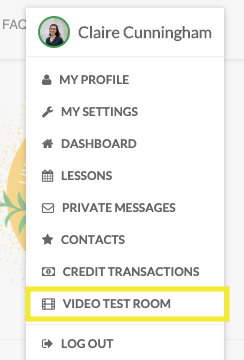
Yes. Lessonface offers Zoom video conferencing, built into our platform for ease and security. You get a unique join link for each lesson by email and by logging into Lessonface and clicking the lesson on your dashboard. You can test ahead of time by registering as a student or teacher (totally free, and takes about 30 seconds) and going to your video test room, which can be found under the circle icon on the top right (highlighted in the screengrab to the right). Students who strongly prefer other video conference systems: let your teacher know your preference, and go for it. Read more about how to video chat.
Are group lessons available?
Yes, click here to see the schedule of group and master lessons that are currently taking enrollments.
How long is each lesson?
Teachers choose the durations that they want to offer. Most teachers offer 30, 45, and 60 minute lessons. Some also offer 15 and 90 min options. You can see the durations offered under "Lesson Duration (minutes)" on the teacher booking page. You can also use the filter to choose teachers who offer particular durations.
What is the cancellation and rescheduling policy for lessons?
If you can’t make a scheduled lesson, you must reschedule or unschedule the lesson at least 24 hours before the lesson start time. More notice is always appreciated.
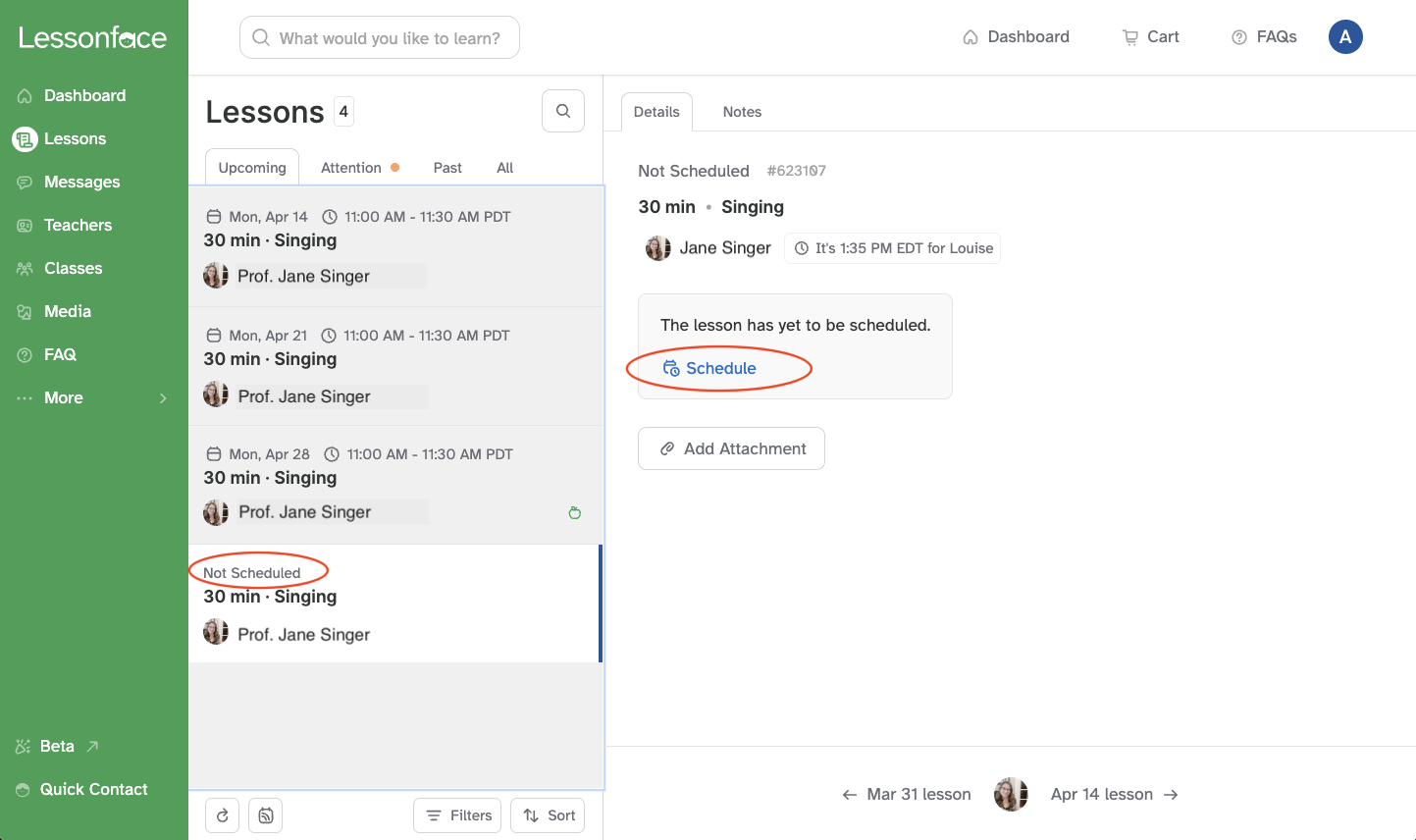
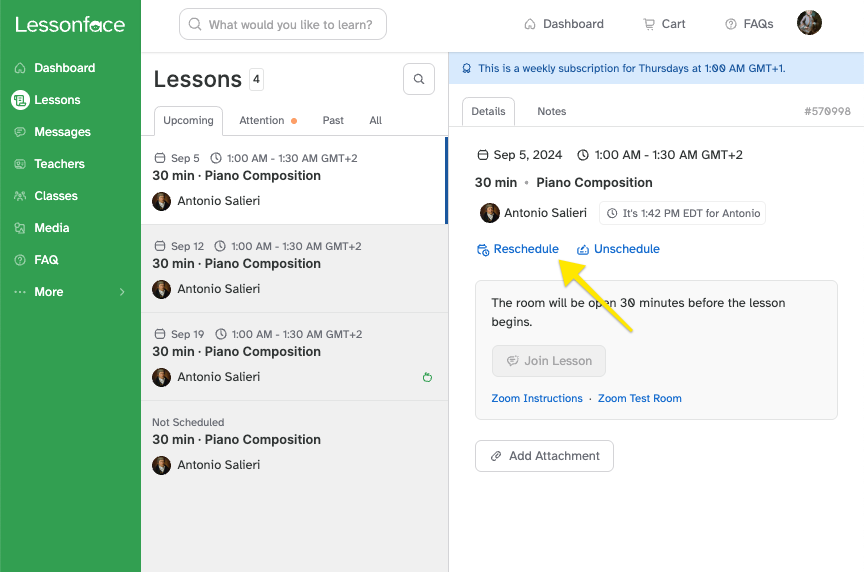
To reschedule or unschedule a lesson before the 24-hour mark, click on the word “Schedule” in Lessons section of your Dashboard (or click here). Your upcoming lessons will be displayed in chronological order. Click on the specific lesson, and then choose Reschedule or Unschedule according to your preference. If you need to cancel a lesson, first unschedule it, and then reach out to Lessonface Support here. Also feel free to send a note to your teacher about it. Teachers appreciate receiving a brief explanation when possible.
After the 24-hour mark, you may not reschedule, unschedule, or cancel a lesson. You may write your teacher a message to let them know you won’t make it. However, unless your teacher makes an exception to the policy, you will be charged for the lesson whether you attend or not. Please check with your individual teacher about their specific policies regarding late cancellations and no-shows, as these may vary.
What's the difference between rescheduling, unscheduling, and canceling a lesson?
- Rescheduling a lesson immediately changes it to a different day and/or time. Both you and your teacher will see the new appointment on your schedules.
- Unscheduling a lesson removes it from the schedule of upcoming lessons without setting a new time. The lesson remains confirmed but appears as "Schedule Pending" in your lesson list. This means you won't need to go through checkout again when you're ready to schedule a new time.
- Canceling a lesson ends the appointment completely. Credits for the lesson automatically return to your account, and you'll need to go through the checkout process again if you wish to book a new lesson.
When to use unscheduling:
- When you need to postpone a lesson but aren't yet sure of your availability
- When you want to take a temporary break from lessons without canceling completely
- When a scheduled lesson didn't take place for some reason, and the teacher wants to let the student choose the new date/time
You can view your unscheduled lessons at the bottom of your Upcoming Lessons list. Click "Schedule" when you're ready to set the time and date.
How can I delete my account?
Send us a note to [email protected] or message us in the chat field, and we will delete your Lessonface account within a day.
How does lesson recording work?
Lessons can be recorded for later review. Recording must be initiated by the teacher each time. If you want your lessons to be recorded, discuss this with your teacher. When recording is activated, you will see "Recording" on the screen with a blinking red circle.
Multiple segments of the lesson can be recorded by starting and stopping, or a whole lesson can be recorded by just clicking once in the beginning of the lesson. The recording process automatically stops when the meeting ends, and the video file is automatically attached to the lesson after 2-3 hours. You can find the video file(s) by going to the individual lesson, under the "Recordings"  tab. You will receive an email with the subject line “Lesson Updated” once the recording has been attached to your lesson and is ready to watch.
Recordings should attach to your lesson automatically. If an expected recording does not show up, or if a recording does not play properly, contact [email protected]. We can only recover recordings that were initiated in the lesson, so make sure your teacher does click the record button and you see the red button pop up in your video stream if you would like a recording of the lesson.
We care about user privacy. Teachers and students can disable the recording feature entirely by going to Account (in the Profile submenu) on the green menu on the left-hand side. Once there, choose "Do not allow my lessons to be recorded for later review" on the "Site" tab. With that checkbox marked, the teacher won't have access to the "Record" button on the Zoom interface.
Are there gift certificates on Lessonface?
Yes, you can create a gift certificate of any amount on Lessonface here.
Community and Features
How can I get to know my fellow Lessonfacers?
There are lots of ways to get involved with the Lessonface community! Students of all ages are encouraged to play in recitals and open mics. Teachers are also welcome to play in open mics. Students, teachers, friends, and family of Lessonfacers may attend these events as audience members to encourage performers.
Social learners will enjoy meeting students around the world in our group classes. Ask questions and discuss topics of interest with your teachers and peers in the Lessonface forum. We also offer specialized group activities such as MET Orchestra Master Classes, classes in visual and other arts through the John C. Campbell Folk School, and Loog Guitar classes for young rockstars.
What other learning resources does Lessonface offer?
Lessonface offers free sheet music, flash cards, and other useful features on our Free Learning Tools page. From your student dashboard, you can set goals, create assignments, and keep a journal of your progress in lessons. You can keep up with the latest Lessonface news and information for students here.
Students
How do I start my lesson?
You will receive a reminder email 24 hours before your lesson start time that will contain a unique link to the session. You can use that link to join the lesson, or you can log into your Lessonface account and use the "Join" button that will appear 30 minutes before the lesson start time.
Will I get a refund if there was bad Internet connection and I was unable to have a successful lesson?
Yes, if it's your first lesson and you have a bad experience for any reason, we will refund your money. Let us know within two business days of attending the lesson unsuccessfully. We do encourage you to test your set-up before your first lesson, so that you won’t spend lesson time addressing connectivity problems. When technical problems do arise during a lesson, teachers are typically very willing to reschedule and try again. The goal is to get you connected and learning, but if it's not possible, you will get your money back.
How do I pay my teacher on Lessonface?
With a major credit card or Paypal account. Sign into Lessonface (or register if you have not already), go to the teacher's profile, choose the lesson booking options, and then go through the check-out process. The teacher is paid after the lesson has been successfully completed.
What equipment do I need to take a lesson on Lessonface?
You will need a computer or tablet with webcam that is connected to reliable high-speed Internet, and your instrument. It's a good idea to have a notebook and water handy as well so you don't have to spend lesson time getting them if they are needed. Click for more on how to video chat for your music lessons.
How do I choose a teacher on Lessonface?
Go to Find Your Teacher and use the search criteria to find the teachers best matched to your instrument, skill level, price range and availability. If you are interested in a particular teacher but would like to learn more about his/her approach prior to booking a lesson, feel free to send him/her a message. Furthermore, many teachers offer a free trial lesson—you will notice a “Book Trial” button on their profile page. Trial lessons are a great way to suss out your fit with a certain teacher without making a financial commitment.
If you would prefer that teachers reach out to you instead of the other way around, describe what you are looking to learn here, and qualified teachers will be in touch.
How can I communicate with my teacher on Lessonface other than via video chat?
You can send any teacher on the site a message by going to their profile and entering a message in the message field on the bottom left hand side of the page.
How do I reschedule a lesson?
Log into your account and first go to Dashboard and then My Lessons. Next to your scheduled lessons, there will be a button that says "Scheduled." If you click on it, you will see the option "Reschedule." Choosing "Reschedule" will take you to the teacher's calendar where you can choose a time to reschedule. If you need to reschedule a lesson, please do so at least 24 hours before the scheduled lesson time so that your teacher will not be inconvenienced. It is also recommended that you send a short message to your teacher explaining the circumstances behind the rescheduling.
Teachers
How do I register as a teacher?
Find more information and the "Sign Up" button for teachers on this page.
More resources:
- Read more about how Lessonface works.
- Read about best practices for videochatting.
- Read about teaching on Lessonface.
- Read our policy for children (parents).

Start Lessons
Search for your perfect music, language, or arts teacher and start working towards your learning goals.
Start with a Free Trial
Teachers on Lessonface set their own rates and discounts. Participating teachers offer free trials.
Great Teachers, Great Lessons, Guaranteed
Learn more about the greatest universe for online music and arts lessons.
Lessonface Recitals, Open Mics, Masterclasses, and Jams
Welcome students of all ages and skill levels!